July 5, 20268 min read
Live Wedding Slideshow: Show Guest Photos on the Big Screen
A live wedding slideshow shows guest photos on the big screen in real time as they upload. Here is how to set one up and why it gets you far more photos.
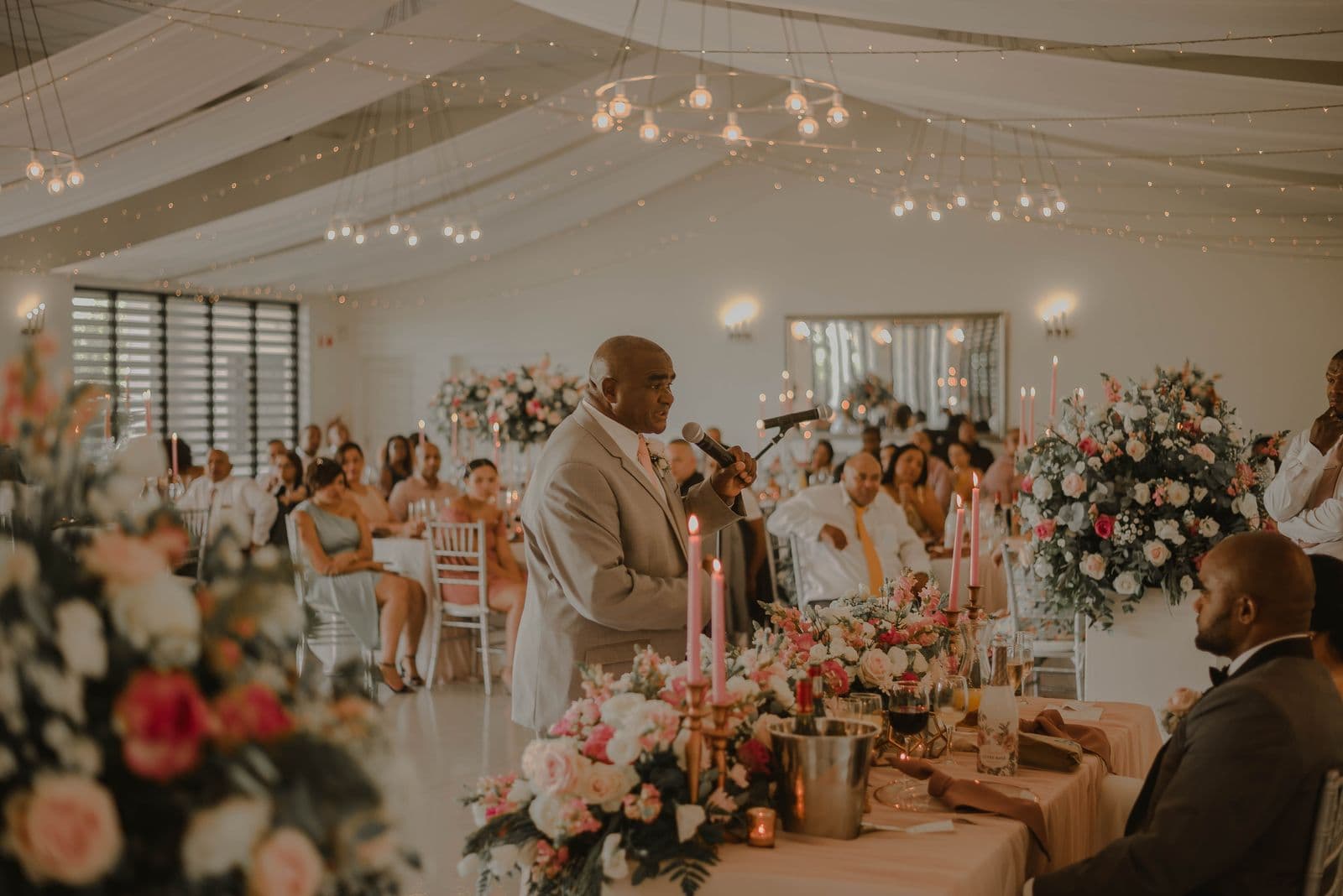
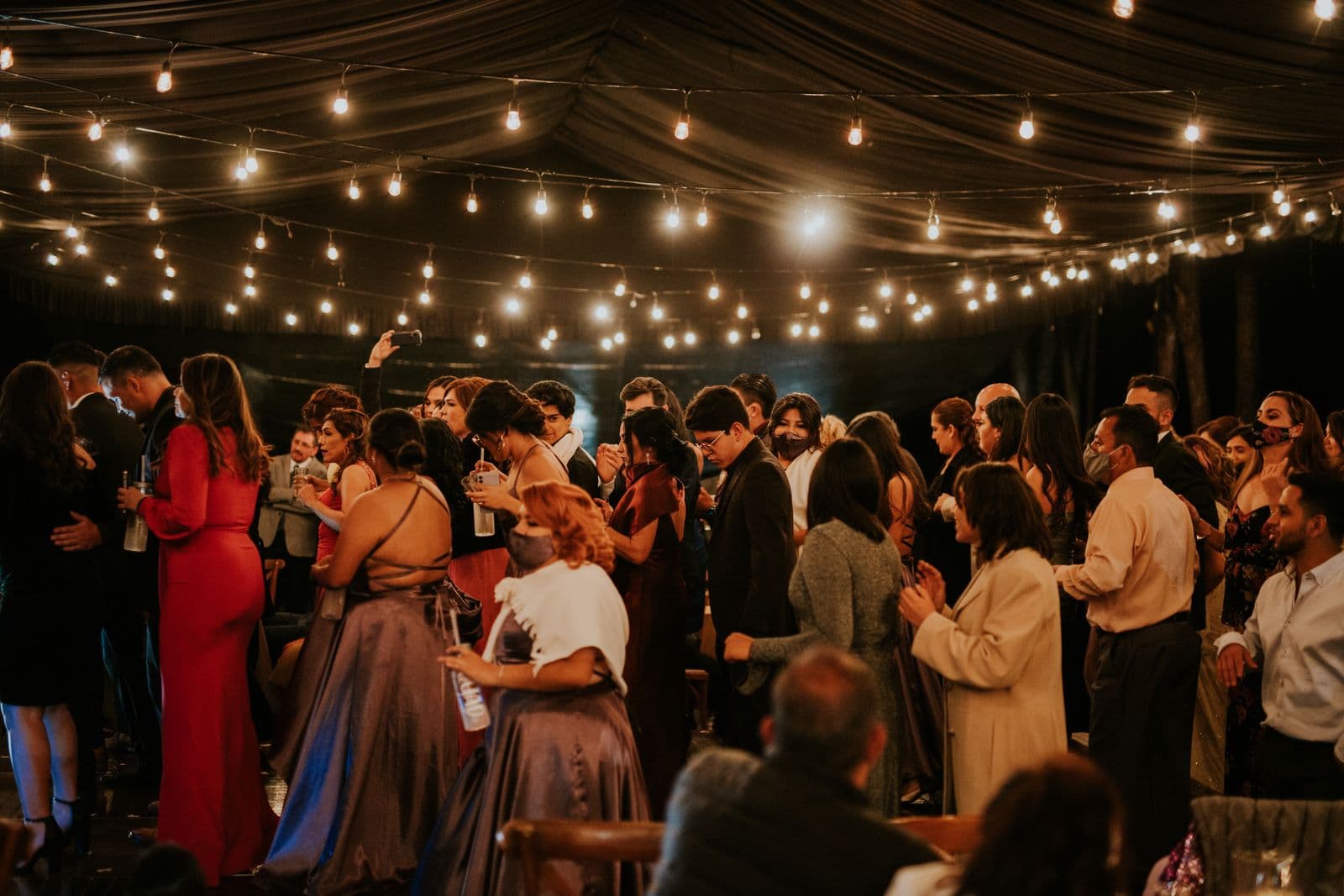
A live wedding slideshow shows guest photos on a big screen in real time, adding each new shot within seconds of it being uploaded. Instead of photos disappearing into private camera rolls all night, they surface in the room as they happen: the confetti moment, the grandparents on the dance floor, the table of cousins pulling faces. The screen keeps refreshing, so the display you start dinner with looks nothing like the one people are laughing at by the end of the night.
It is part decoration, part entertainment, and quietly the single best trick for getting guests to actually share the photos they take. Most people mean to send you their pictures and then never do. A live slideshow flips that. When a guest sees their own photo land on the big screen, sharing stops feeling like a chore and starts feeling like being part of the show. This guide is about that specific setup: the real-time slideshow, why it works, and how to run one that looks good and behaves all night.
What a Live Wedding Slideshow Is
A live wedding slideshow is a screen at your reception that displays guest uploads within seconds of them arriving, and keeps updating throughout the night. It is not a fixed presentation you build in advance and press play on. It is a running feed of whatever your guests are capturing right now. Someone snaps a photo on the dance floor, uploads it from their phone, and moments later it is on the screen for the whole room. The slideshow cycles through the growing collection, mixing brand new shots with earlier favourites, so the display feels alive rather than looped and stale.
Under the hood it is simple. Guests upload through their phone browser with no app to install, the photos flow into your event gallery at full resolution, and the slideshow pulls the newest ones onto the screen automatically. There is nothing for you to refresh or drag into place during the party. You set it up once, put it on full-screen, and let the night fill it in.
Why a Live Slideshow Gets You More Photos
The reason a live slideshow works so well is a participation flywheel. A guest uploads a photo, sees it appear on the big screen a few seconds later, and gets a small, genuine hit of delight. That reward makes them want to do it again, so they upload the next one. The people around them notice their friend's photo up there, realise their own shots could be too, and reach for their phones. What started as one person quietly sharing becomes a table, then a room, all feeding the same screen. Collecting turns into a shared game, and the game runs itself. For the wider playbook on getting every camera roll into your gallery, see how to collect every photo your wedding guests take.
- Instant reward. Seeing your own photo on the screen within seconds is the payoff that a hidden upload button never gives. It makes people upload again straight away.
- Social proof. When guests watch others' photos appear, they understand what to do without being told, and they copy it. The screen teaches the room how to take part.
- Gentle competition. People start hunting for the shot worth putting up, which means more angles, more candids, and more of the moments you would otherwise miss.
- A reason to look up. The slideshow gives guests something to point at and talk about, and every glance is a reminder that they can add to it.
How to Set Up a Live Slideshow
- Choose a screen. Use a venue TV, a hired projector aimed at a screen or blank wall, or even a large tablet on a stand for a small room. Match the size to the space so photos read clearly from the tables.
- Connect a laptop or tablet running the live gallery. One device does all the work. Plug a laptop into the screen with an HDMI cable, or cast from a tablet, and keep it powered for the whole night so it never drops out.
- Open it in full-screen. Load your event's live slideshow in a browser and switch to full-screen so tabs, menus, and the address bar vanish and the room sees only the photos.
- Set a short moderation delay. Turn on a display delay of a minute or two. That gives you a calm window to skip anything unflattering or off-colour before it ever reaches the screen, while everything still lands safely in the gallery.
- Test the venue wifi, with a phone hotspot as backup. Check the connection from the exact spot the device will sit, not just at the door. Weak signal is the most common cause of a stalled slideshow, so have a mobile hotspot ready to switch to if the venue network wobbles at peak time.
Where to Put the Screen
Placement is what decides whether the slideshow becomes a talking point or gets ignored in a corner. You want it where people already gather and glance, at a height they can actually see, and out of any light that would wash it out. A few reliable rules:
- Near the dance floor or dinner area, where the crowd naturally forms and there is always someone with a moment to watch.
- At eye level, or a touch above, so seated and standing guests both get a clear line of sight rather than craning around heads.
- Out of direct light, away from windows and spotlights that leave even a bright screen looking grey and unreadable.
- Not in a dead corner, where nobody wanders and the display quietly becomes wallpaper that no one thinks to add to.
Keeping It Tasteful
A screen the whole room can see calls for a light touch of control, and a good live slideshow gives you exactly that without any fuss. The moderation delay holds each photo for a minute or two before it appears, which is usually all the buffer you need to catch something you would rather not project. Alongside it, a hide control lets you tap a single photo to skip it so it never shows on the screen. The important part is that both tools only affect the public display. Every photo, including the ones you hide, still lands in your gallery at full resolution, so you keep the complete collection while staying in charge of what the room sees in the moment.
Live Slideshow Tips That Land
- Announce it once. A quick word from the host, the MC, or a line on the order of the day tells guests the screen exists and that their photos will show up on it. One mention early is enough to switch the whole room on.
- Keep the QR code near the screen. Put a small sign with the upload code right beside the display so the impulse to add a photo and the way to do it live in the same place. A QR code for wedding photos is the fastest path from watching to uploading.
- Let it loop older photos during quiet moments. Between fresh uploads, the slideshow can cycle earlier shots so the screen never goes blank during the meal or the lull before dancing. The room always has something to look at.
- Give someone the job for the night. Ask a friend, a groomsperson, or a coordinator to keep half an eye on the device: check it is connected, nudge it back to full-screen if needed, and use the hide control if anything slips through. It is a light task that keeps the whole thing smooth.
Other Ways to Display Guest Photos
A live slideshow is the highest-impact, lowest-effort option, but it is not the only way to put guest photos in the room. If you are weighing a projector against a TV, a digital frame, or a printed photo wall, our guide to how to display guest photos at your wedding reception compares each one and what it is best for. For the bigger picture of how guests upload and where the photos live afterwards, wedding guest photo sharing is the overview to start from.
Turning on a live slideshow costs you a few minutes of setup and pays you back for the entire night. Your guests get a living scrapbook that grows in front of them, the room gets a reason to keep sharing, and you wake up to a fuller gallery of candid moments than you would ever have collected quietly. Pick a screen, open the live gallery in full-screen, set a gentle delay, and let your guests' photos take centre stage.
Frequently asked questions
What is a live wedding slideshow?
A live wedding slideshow is a screen at your reception that shows guest photos in real time, adding each new upload within seconds and refreshing throughout the night. It is not a fixed presentation you build in advance. It is a running feed of whatever your guests are capturing as the party unfolds.
How do guest photos show up on the screen in real time?
Guests upload from their phone browser with no app to install, the photos flow into your event gallery at full resolution, and the slideshow pulls the newest ones onto the screen automatically. You do not have to refresh anything or drag photos into place during the party. It updates on its own.
What do I need to run a live slideshow at my wedding?
A screen such as a venue TV, a hired projector, or a large tablet; a laptop or tablet running the live gallery in full-screen; a steady wifi connection with a phone hotspot as backup; and an HDMI cable or wireless casting to link the device to the screen. Most venues can supply the screen for you.
Does a live slideshow really get more photos?
Yes, and noticeably so. When a guest sees their own photo appear on the big screen, they feel rewarded and upload more, and the people around them copy them. That participation flywheel turns quiet collecting into a shared game, so you end the night with far more candid shots than a hidden upload link would gather.
How do I stop bad photos appearing on the slideshow?
Use the moderation delay so each photo waits a minute or two before it shows, giving you a window to review it, then tap the hide control to skip any you would rather not project. Hidden photos still land in your private gallery at full resolution, so you keep every image while keeping the public display tasteful.
Put your guests' photos on the big screen
Guests scan a QR code, upload in seconds, and their photos appear on a live slideshow at the reception. Free to start.